Mass and Batch Payments: Send Hundreds of Payments in One Click with Transferra
Pay suppliers, contractors, and partners across multiple currencies — all at once, from a single CSV file. No manual entry, no repeated approvals.
Pay suppliers, contractors, and partners across multiple currencies — all at once, from a single CSV file. No manual entry, no repeated approvals, no wasted time with mass and batch payments.
Why This Matters
If you’re running payroll for a distributed team, settling invoices with suppliers in multiple countries, or processing regular bulk transfers — you already know the pain of doing this one payment at a time.
With Mass & Batch Payments, you can:
- Upload hundreds of payments in one go via a simple CSV file
- Send to multiple countries and currencies simultaneously
- Review, edit, or delete individual transactions before they go out
- Approve the entire batch with a single 2FA confirmation
- Eliminate manual data entry errors that come with one-by-one processing
⚡ Automatic payment method detection You don’t need to specify SWIFT, SEPA, or Faster Payments for each row. The system automatically detects the correct payment method based on the Account Number, Currency, Sort Code.
How to Send Mass and Batch Payments: Step-by-Step
The entire process takes under five minutes once your CSV file is ready.
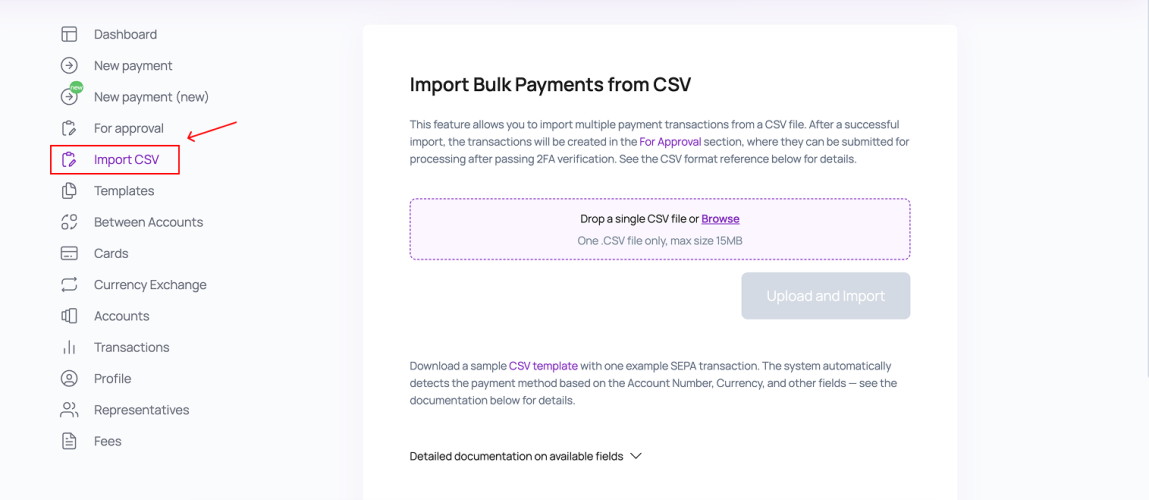
Step 1 — Go to Import CSV
From your Transferra dashboard, navigate to the Payments section and select Import CSV from the menu.
Step 2 — Upload your CSV file
Drop your CSV file into the upload area, then click Upload and Import. The system will parse the file and validate each row automatically.
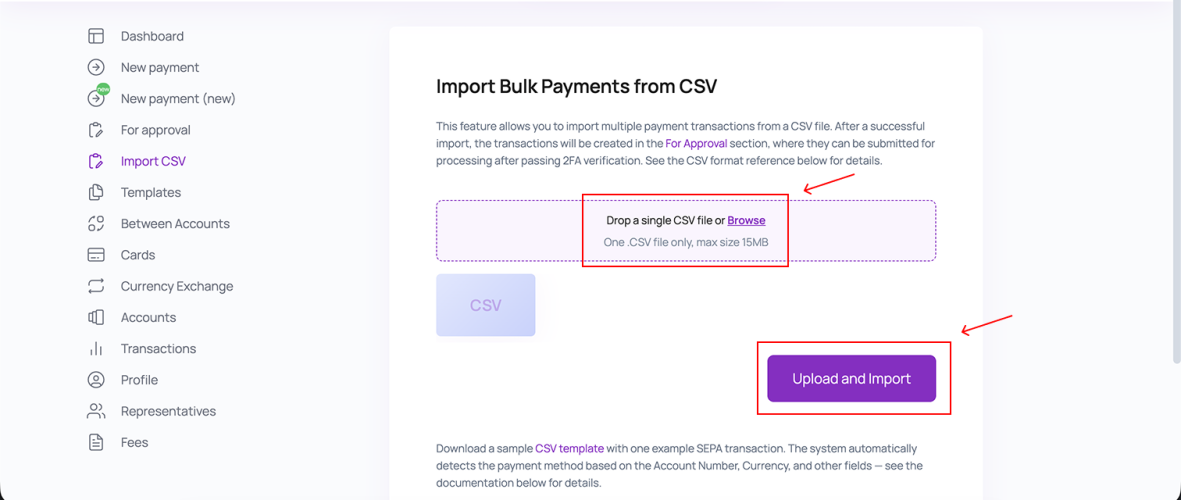
💡 Don’t have a CSV ready? Download a sample CSV template with a pre-filled example SEPA transaction directly from the Import CSV screen. Use it as a starting point — just replace the example data with your own.
Step 3 — Review, edit, and select payments
Your transactions appear in a list. Check the boxes next to the payments you want to process. You can modify any individual payment — recipient details, amount, reference — or delete rows you don’t need before proceeding. Click Approve.
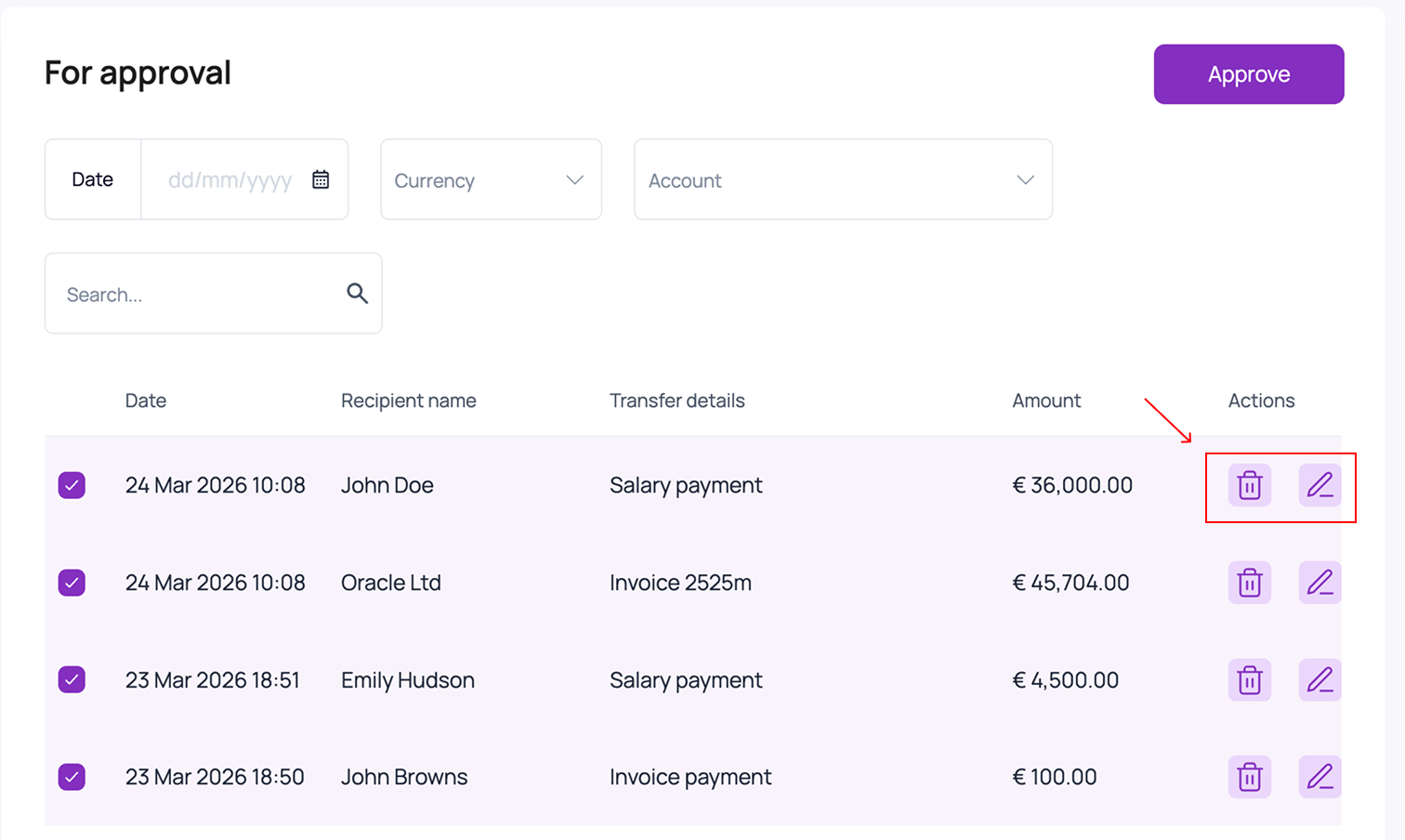
✏️ Editing is available before approval Made a typo in an account number? Wrong amount on one row? You can modify or delete any individual transaction at this stage — nothing is final until you confirm.
Step 4 — Review and confirm the batch
You’ll see a final summary of all selected payments — total amounts by currency, number of transactions, recipient list. Review everything, then click Confirm to proceed.
Step 5 — Enter your 2FA code
For security, every batch submission requires 2FA verification. Enter the code from your authenticator app or SMS to authorise the payment run.
Step 6 — All set
Your transactions move to processing. You can track the status of each individual payment from your dashboard. Most transfers arrive the same business day.
Where Do Payments Go After Import?
After a successful CSV import, all transactions are created in the For Approval section. They stay there until you submit them for processing via 2FA verification. This means:
- Your team can prepare and upload a batch in advance
- An authorised approver can review and confirm at the right time
- No payment leaves your account until the final 2FA step is completed
🔒 Nothing moves without your explicit approval Uploading a CSV file does not trigger any payments. All transactions sit in For Approval until you — or an authorised team member — reviews and confirms the batch with 2FA.
CSV Format Reference
Your CSV file must include a header row with column names. Column order does not matter — columns are matched by their name. Optional columns can be omitted entirely.
Frequently Asked Questions
How many payments can I include in one CSV file?
There is no hard limit on the number of rows. For very large files (500+ transactions), allow a few extra seconds for the system to parse and validate all rows.
Can I mix currencies in one batch?
Yes. A single CSV can contain payments in multiple currencies — EUR, GBP, USD, and any other currency supported by your account. Each transaction is processed in its respective currency with no unnecessary conversion.
What happens if a row has an error?
The system validates each row on upload. Rows with errors — such as an invalid IBAN, missing required field, or unsupported currency — are flagged individually. Valid rows proceed normally; you can correct errors and re-upload the affected rows, or simply remove the flagged transactions and process the rest.
Who can approve a batch?
Any account user with payment approval permissions can review and confirm a batch. Approval always requires 2FA — ensuring that no payment is processed without verified authorisation from an account holder.
Can I edit payments after uploading but before approving?
Yes. Between upload and final approval, every individual transaction can be modified or deleted. Nothing is locked until you enter your 2FA code on the final confirmation screen.
Ready to run your first batch? Log in to your Transferra account and go to Payments → Import CSV to get started. Download the sample template, fill in your recipients, and send hundreds of transfers in minutes. Have questions? Your dedicated account manager is available to walk you through the first batch.

